PDF to JPG: Save Pages as Images
This PDF to JPG tool renders the pages you choose as sharp JPG pictures, or copies out the photos stored inside the file. It runs in your browser tab, so the PDF stays on your computer or phone.
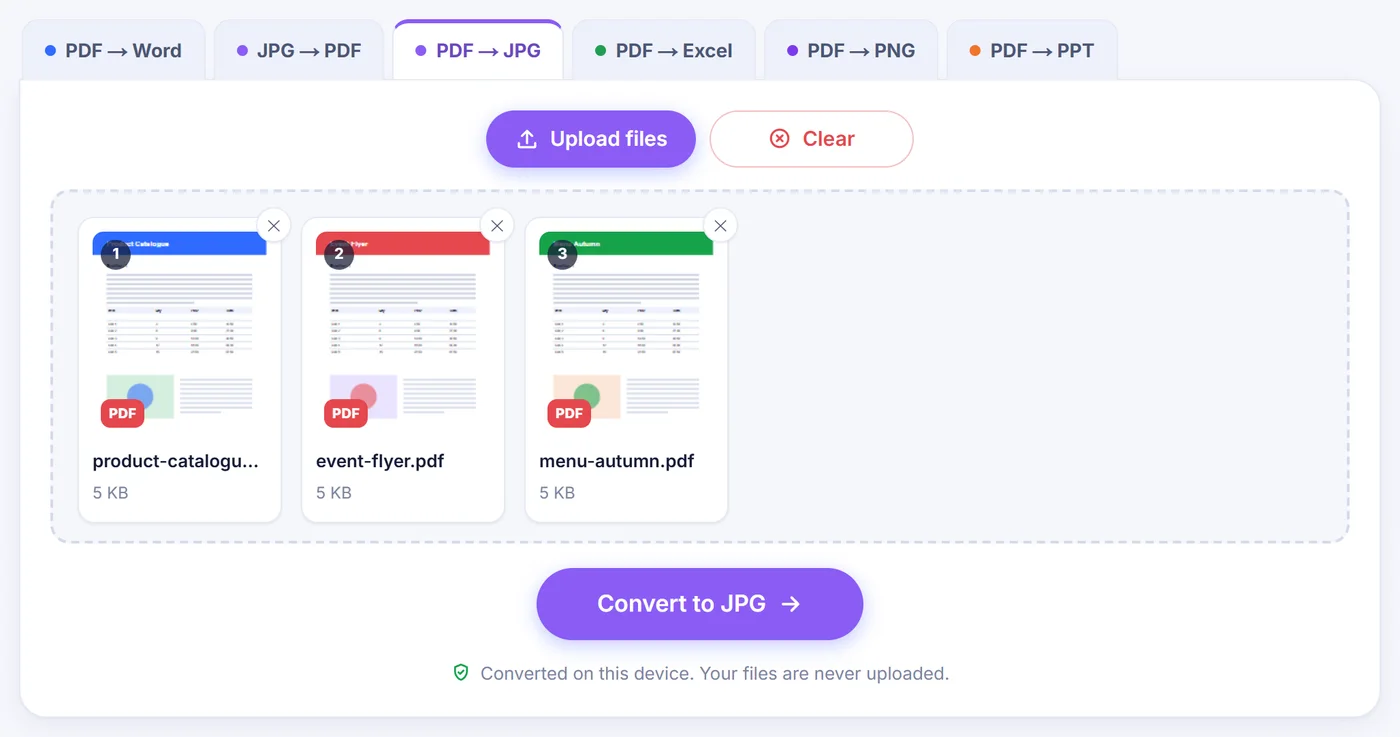
Converted on this device. Your files are never uploaded.
How it works
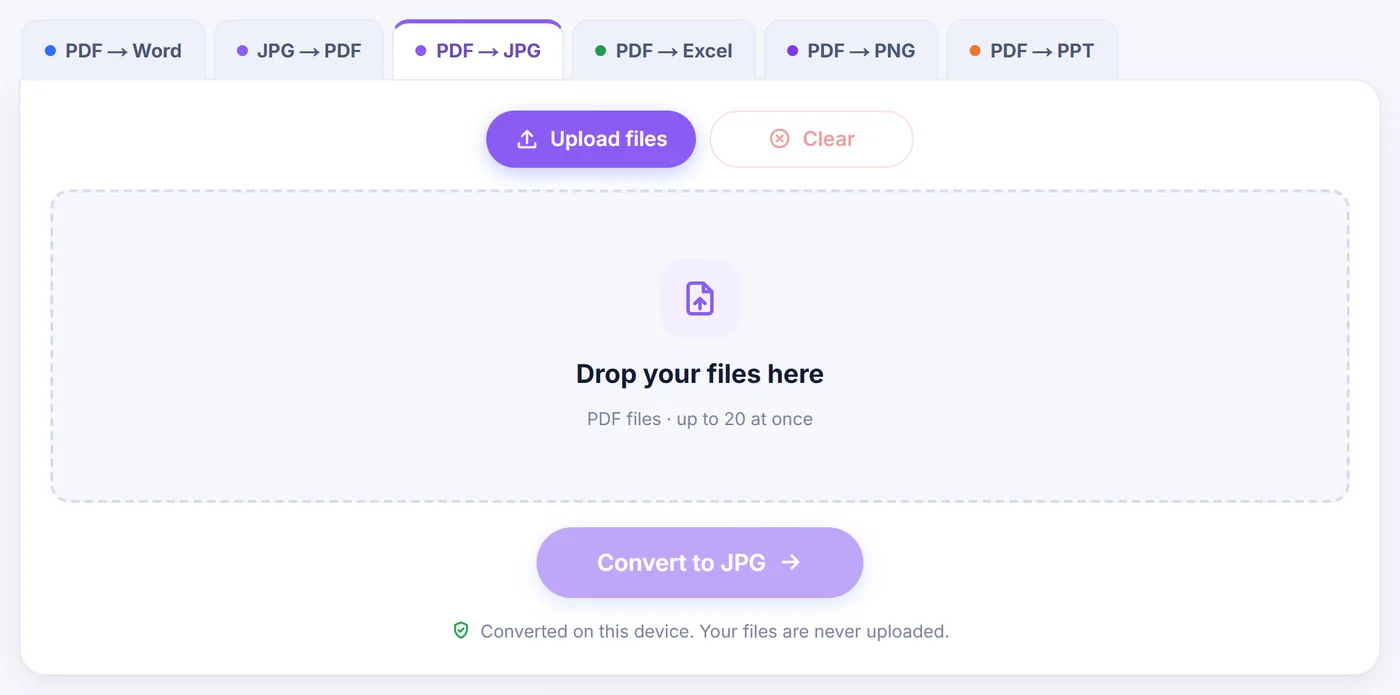
Drop in your PDFs
Add one document or a batch of up to 20; a locked file asks for its password before it opens.
Choose what to save
Select pages on the thumbnail map, then set the dpi and the quality slider while the preview shows the outcome.
Collect the pictures
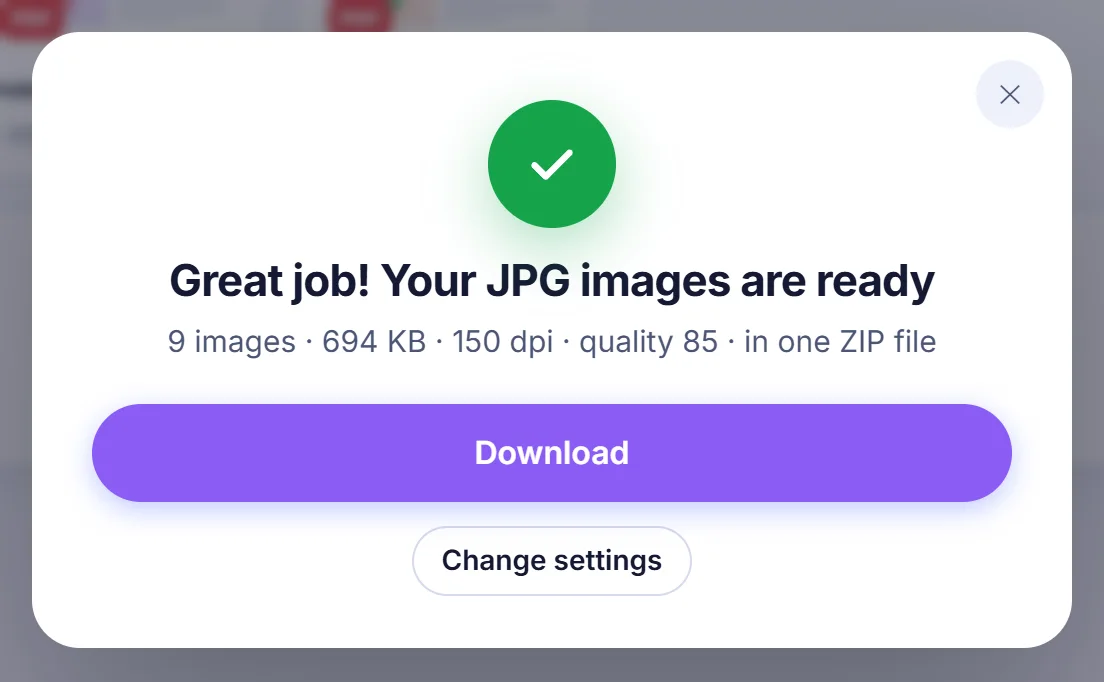
Get a single ZIP archive or every JPG as its own download, with page numbers in the file names.
Why people turn a PDF into JPG pictures
A PDF is great for keeping a document intact, but awkward the moment you want to show one page somewhere that only accepts pictures. Social posts, chat apps, slide decks, online shop listings, school portals and many web forms take images without complaint and refuse PDFs. A JPG of the page solves that: anyone can open it, it previews instantly on a phone, and it drops straight into an email body or a presentation.
Other common reasons: sending a single page of a long contract instead of the whole file, posting a flyer or menu as an image, giving a designer a page to trace, or saving the photographs that someone embedded in a brochure. This page covers both cases with two separate modes.
Two ways to convert PDF to JPG here
Pages to JPG
Each page you select becomes one image, as it appears in a PDF viewer: text, drawings, photos and backgrounds flattened into pixels. After your files open, a grid of thumbnails appears. Click a page to select or deselect it, hold Shift and click to grab a whole run, or type a selection such as 2-6, 9, last. Words like odd, even, first and all also work, and quick buttons do the same with one tap.
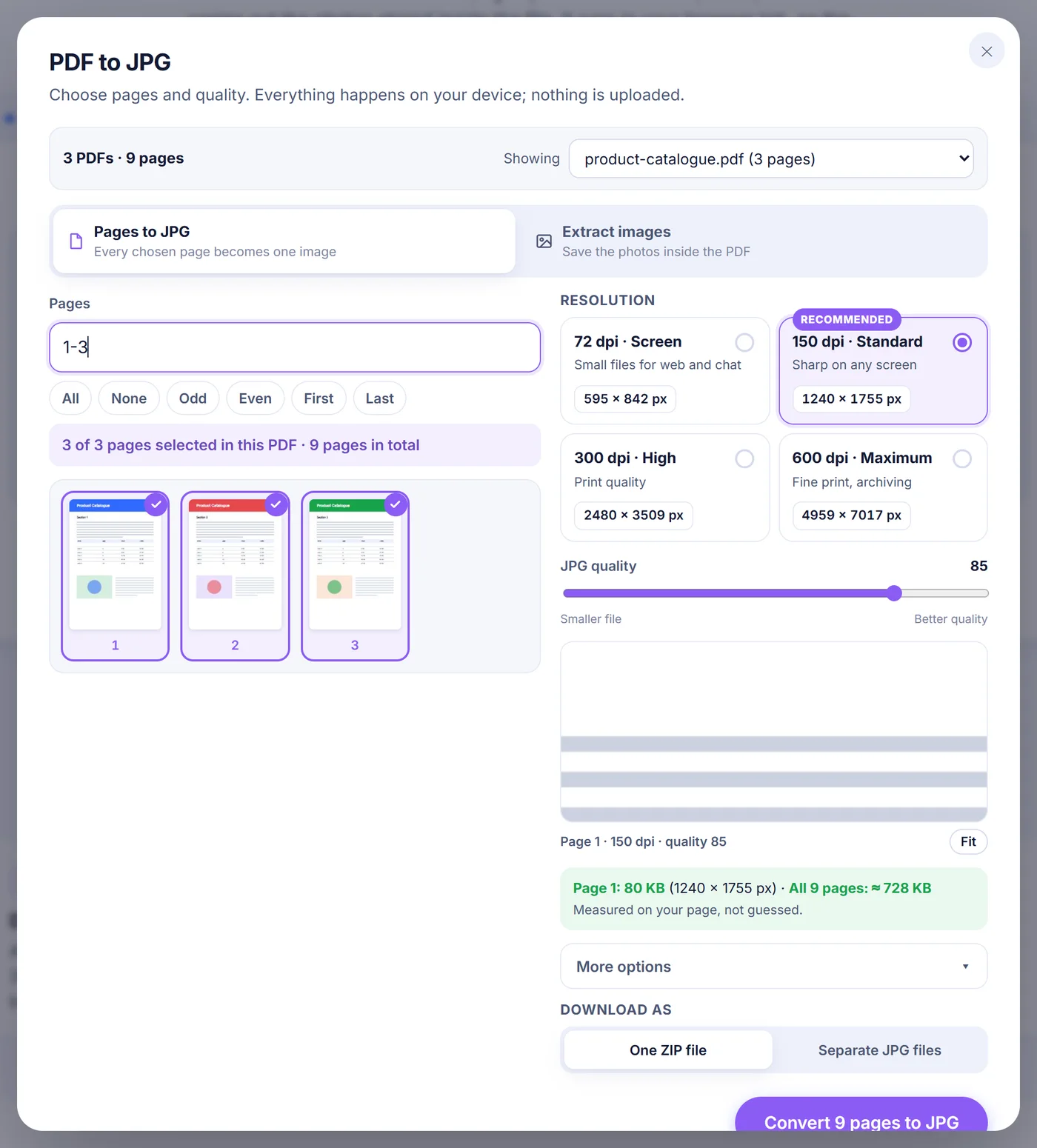
Next comes resolution. Four presets cover most needs: 72 dpi for small files meant for web and chat, 150 dpi (the default) for crisp reading on any screen, 300 dpi for printing and 600 dpi for fine detail or archiving. Under "More options" you can type any value from 36 to 1200 dpi and switch on grayscale, which suits text-only documents and shrinks the files.
The JPG quality slider runs from 30 to 100 and starts at 85. While you move it, the tool renders your first selected page and shows it at 100% zoom, so you can judge compression artifacts on your own content rather than a sample picture. It also encodes that page as a real JPG and shows its file size, plus an estimate for all chosen pages together. At very high dpi the preview is drawn from a smaller sample of the page, so the single-page figure becomes an estimate too.
Extract images
Sometimes you do not want the page at all, only the photo printed on it. In this mode the tool walks through every page, including nested graphics, and lists the pictures the pages use. A logo repeated on every page is listed once, on the first page where it appears. Photos that were stored as JPEG inside the PDF are copied out byte for byte, so there is no second round of compression and no quality lost. Pictures stored in other ways (grayscale, RGB, CMYK or palette images) are decoded and saved as new JPGs using the quality slider. Small items under 64 pixels, such as rules, bullets and icons, are hidden by default; a switch brings them back. A button can also limit the selection to the untouched original JPGs.
What the finished JPG files look like
Page images are named after your PDF plus a zero-padded page number, for example handbook-page-007.jpg from a 120-page handbook, so they stay in the right order in any folder. Extracted pictures follow the pattern handbook-p007-img2.jpg, meaning the second picture on page 7. If you produce two or more images you choose between one ZIP archive and separate downloads. The ZIP is built without extra compression, because JPG data is already compressed and squeezing it again would only cost time.
Every page image also stores its dpi in the file header. That small detail means a 300 dpi export prints at the same physical size as the original page instead of appearing huge or tiny in a print dialog.
Keep in mind that a JPG is a flat picture. Text in it cannot be selected, searched or edited, links stop working, and transparent areas come out white because the format has no transparency.
Choosing the right settings
- Sharing on screen: 150 dpi at quality 80 to 85 gives readable text and modest file sizes.
- Printing: use 300 dpi and a quality of 90 or higher. Small type and thin lines stay clean.
- Uploading to a form with a size cap: drop to 72 or 100 dpi, lower the quality, and watch the size estimate until it fits.
- Scanned paperwork: grayscale makes the files noticeably smaller, and the text stays just as readable.
- Photos from a catalogue: try Extract images first; original JPEGs come out at their full stored resolution.
Problems you might run into
The PDF has a password
When a file is protected, a box asks for its password. It is used only to open the document on your device. If you skip it, that file is left out and the rest of the batch continues. Once the right password is typed, Pages to JPG renders the document normally, but Extract images cannot copy pictures out of an encrypted PDF, so use the page mode for those.
Scanned documents
A scan is really one big picture per page, so Pages to JPG handles it perfectly. There is no text recognition; the result is an image of the scan. In Extract images mode a scan often shows a single picture per page, and some scanner encodings (JBIG2, fax and JPEG 2000) cannot be decoded in the browser. The tool tells you how many it skipped and points you to the page mode, which captures them as part of the page.
Very large pages or very high dpi
A browser can only draw an image of limited size. If a page at your chosen dpi would exceed about 36 megapixels (roughly 16.7 megapixels on iPhone and iPad), the tool lowers the resolution for that page only and says so in the result. Picking fewer pages or a lower dpi helps on phones with little memory.
A damaged file
If the file is not a valid PDF, you get a clear message instead of broken images. Saving it again from the program that made it usually fixes the problem.
How your files stay private
All the work is done by JavaScript running in this browser tab. The PDF is read from your disk into memory, pages are drawn on a canvas, and the JPGs are created right there. No copy travels to a remote machine, so there is nothing stored anywhere to delete later. Close the tab and everything is gone. You do not need an account, there is no watermark, and the converter costs nothing. It works in current versions of Chrome, Edge, Firefox and Safari on desktop computers, Android phones and iPhones.
Frequently asked questions
How do I convert a PDF to JPG without losing quality?
Choose 300 dpi or higher and set the quality slider to 95 or 100. If you only need the photos inside the PDF, use Extract images: embedded JPEGs are copied out unchanged.
Can I save just one page of a PDF as a JPG?
Yes. Click that page in the thumbnail grid or type its number in the Pages box, then convert. Only the selected page becomes an image.
Can I convert several PDFs to JPG at once?
Yes. Add up to 20 PDFs together, switch between them with the file menu to pick pages in each, and one set of dpi and quality settings applies to all. The images arrive in one ZIP or as separate downloads.
What dpi should I use for PDF to JPG?
150 dpi is sharp on screens and keeps files small. Use 300 dpi for printing and 600 dpi for fine detail; any value from 36 to 1200 can be typed in.
Does it work with password-protected PDFs?
Yes for page images: type the password when asked and it is used only on your device. Pictures cannot be extracted from encrypted files, so use the page mode for those.
Will the text in the JPG be editable?
No. A JPG is a picture, so text becomes pixels and cannot be selected or searched. There is no OCR in this converter.
Are my PDF pages sent anywhere when I make JPGs?
The conversion happens entirely inside your browser and the file is never sent anywhere, so the document does not leave your device.